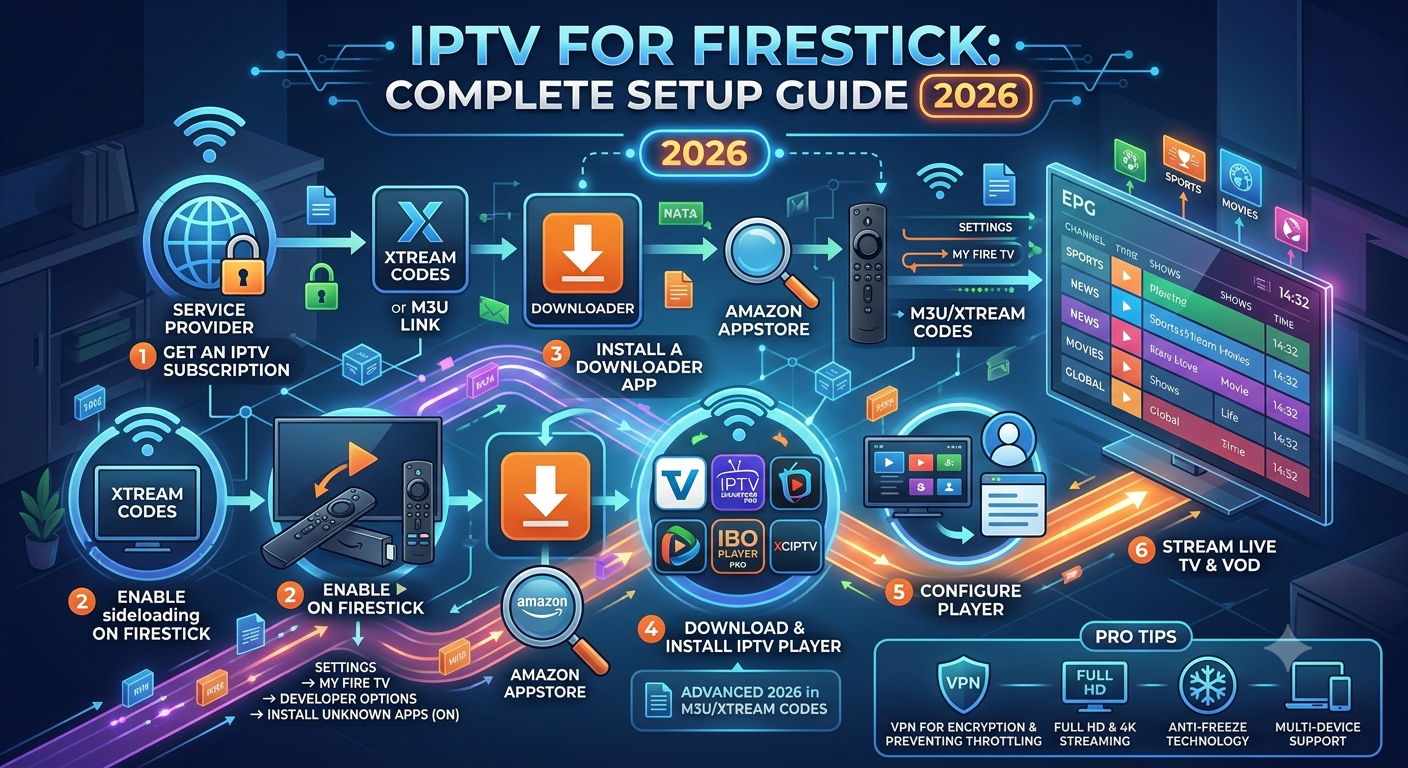
Amazon Firestick is one of the most common devices people reach for when setting up IPTV at home, largely because it’s affordable, compact, and already familiar to millions of households. If you are looking to pair your device with top-tier premium packages, visit One IPTV 4K before beginning. Getting IPTV for Firestick working properly involves a few extra steps that aren’t necessary on more open Android devices, since Fire OS restricts app installation by default. This guide walks through what that setup actually involves, from enabling sideloading to troubleshooting the issues that tend to come up afterward.
Firestick runs Fire OS, Amazon’s operating system built on an Android foundation. That foundation is what makes IPTV apps possible on the device at all, but Amazon’s Appstore doesn’t list most dedicated IPTV players, so installing one means sideloading an APK file rather than downloading through the store. Sideloading is a standard, Amazon-supported feature accessed through the Developer Options menu, documented directly in Amazon’s own Fire TV help resources, so it isn’t a workaround so much as an intended, if less publicized, path for installing apps outside the Appstore. Once that step is done, the rest of the process closely mirrors setting up IPTV on any other Android-based device.
Key takeaways:
- IPTV apps aren’t preinstalled on Firestick and typically require sideloading through the Downloader app.
- Sideloading is an Amazon-supported feature, not an unofficial workaround, though it does involve more steps than a standard app store install.
- Device generation matters: base Firestick models handle lightweight apps well but can struggle with 4K or interface-heavy players.
- Most setup problems trace back to one of four causes: a disabled permission, an incorrect APK source, insufficient storage, or a Fire OS version mismatch.
What Is IPTV for Firestick?
IPTV for Firestick means running an IPTV player app on Amazon’s Fire TV platform, usually installed by sideloading an APK file since most dedicated IPTV apps aren’t listed in the Amazon Appstore. The app itself is separate from the IPTV source — the playlist or provider supplying the actual channel data — and that distinction shapes most of the setup and troubleshooting steps ahead.
It helps to separate two components early on. The app decodes and displays the stream, while the source supplies the playlist or channel data through an M3U URL or Xtream Codes login. Firestick users often conflate the two when something goes wrong, when in most cases the issue sits on just one side of that equation.
Firestick vs. Fire TV Cube vs. Fire TV Stick 4K: Does It Matter for IPTV?
Not every Fire TV device performs the same with IPTV apps. The base Firestick has less RAM and processing power than the Fire TV Stick 4K Max or Fire TV Cube, which becomes noticeable with resource-heavy interfaces or higher-resolution streams.
- Fire TV Stick (base model): Adequate for lightweight IPTV apps and SD/HD content, but can strain under resource-heavy interfaces.
- Fire TV Stick 4K / 4K Max: More RAM and a faster processor, better suited to 4K streams and apps with detailed EPG interfaces.
- Fire TV Cube: The most powerful Fire TV device, useful for multiple installed apps or consistently heavy use.
Picking the right device generation before setup heads off a good share of the performance complaints people run into later.
How IPTV Works on Firestick
Fire OS’s Android base allows apps to be installed outside the Amazon Appstore through sideloading — installing an app manually from a file rather than through an official store listing. This isn’t unique to IPTV; it’s the same mechanism used to load any Android APK not officially distributed through Amazon’s store, and it relies on Android Debug Bridge (ADB) permissions built into the operating system. Current Fire TV devices run Fire OS 8 or newer, built on Android 11, and connect over 802.11ac or 802.11ax Wi-Fi depending on the model, both of which affect how consistently a sideloaded app performs.
The Downloader app, itself available through the Amazon Appstore, is the tool most commonly used to retrieve and install these APK files. Once an IPTV app is installed this way, it behaves the same as it would on any other Android-based device: it connects to a playlist or server URL, decodes the incoming stream using standard video codecs, and displays it using the device’s available hardware. For more context, you can read about how IPTV apps work across different devices.
Benefits of Using IPTV for Firestick
Firestick’s popularity for IPTV setups isn’t accidental. A few practical advantages explain why it’s a common starting point:
- Lower cost compared to most dedicated Android TV boxes.
- Compact size with simple HDMI plug-and-play setup.
- Broad compatibility with most Android-based IPTV apps once sideloading is enabled.
- Regular firmware updates from Amazon that improve stability over time.
For casual or budget-conscious setups, these advantages tend to outweigh the extra sideloading steps required upfront.
Limitations of IPTV for Firestick
Firestick’s main limitations for IPTV come down to hardware constraints on base models and the extra setup friction created by Amazon’s closed app ecosystem. A few specifics worth knowing before relying on Firestick as a primary IPTV device:
- Lower RAM and processing power on base models can slow down heavier IPTV apps.
- Sideloading requires steps that aren’t necessary on more open Android devices.
- Most dedicated IPTV apps aren’t listed in the Amazon Appstore, requiring manual APK installation.
- Older Firestick generations may struggle with sustained 4K playback.
Common Problems With IPTV on Firestick
Most IPTV problems on Firestick trace back to one of four causes: an incorrect APK source, a Fire OS version mismatch, weak Wi-Fi signal, or insufficient device storage. The sections below cover each in more detail.
The Downloader App Won’t Install the APK
This usually traces back to an incorrect APK URL, an interrupted download, or insufficient storage space rather than a fault in the Downloader app itself. Double-checking the URL and available storage resolves most cases.
The App Installs But Crashes on Launch
A crash immediately after installation often points to a version mismatch between the app and the installed Fire OS build, or insufficient RAM on base-model devices running a resource-heavy app.
Buffering is Worse on Firestick Than on Other Devices
This is frequently tied to Wi-Fi signal strength combined with the base Firestick’s more limited processing headroom, rather than the IPTV app or provider alone. Switching to a wired Ethernet adapter often narrows down whether the device or the network is the bottleneck. For a deeper breakdown of buffering causes and fixes, see this IPTV buffering troubleshooting guide.
The “Apps from Unknown Sources” Setting Keeps Reverting
Some Fire OS updates reset this permission, which is expected behavior rather than a sign of a broken setup. Rechecking the setting after any system update avoids repeated installation failures.
Storage Space Runs Out During Installation
Base Firestick models ship with limited internal storage, and multiple installed IPTV apps combined with cached data can fill that space quickly. Clearing app cache or uninstalling unused apps typically frees enough room.
How to Set Up IPTV for Firestick: Step-by-Step Guide
Setting up IPTV for Firestick involves five steps: enabling unknown sources, installing the Downloader app, sideloading the chosen IPTV app’s APK, entering playlist details, and adjusting buffer settings for stable playback. Each step builds on the one before it, so skipping ahead tends to cause installation errors later.
Step 1: Enable Apps from Unknown Sources
Go to Settings, then My Fire TV, then Developer Options. Toggle on “Apps from Unknown Sources” and, if prompted, “ADB Debugging” as well. This step is what allows any APK installed outside the Amazon Appstore to run at all.
Step 2: Install the Downloader App
Search for “Downloader” directly within the Amazon Appstore and install it. This app retrieves APK files from a specified URL and walks through the installation process.
Step 3: Download and Install the IPTV App’s APK
Open Downloader, enter the correct APK URL for the chosen IPTV app, and follow the installation prompts. Confirm the URL comes from the app’s official source before proceeding, since sideloading from unverified sites introduces unnecessary risk.
Step 4: Launch the App and Enter Playlist or Xtream Codes Details
Open the newly installed app and enter either an M3U playlist URL or Xtream Codes login credentials, depending on what the source provider supplies. The app then loads channel lists and EPG data if supported.
Step 5: Adjust Buffer and Display Settings for Optimal Performance
Once channels load successfully, open the app’s settings menu to adjust buffer size and confirm the display resolution matches what the connected TV supports. This final step often makes the difference between occasional buffering and consistently smooth playback.
Best Practices for Running IPTV Smoothly on Firestick
- Use a wired Ethernet adapter for Fire TV if Wi-Fi buffering persists, since Firestick doesn’t include a native Ethernet port.
- Clear app cache periodically to prevent slowdowns from accumulated data.
- Keep both Fire OS and the installed IPTV app updated.
- Avoid running multiple background apps at once on lower-RAM Firestick models.
Common Mistakes to Avoid When Setting Up IPTV on Firestick
- Downloading APKs from unverified or unofficial third-party sites.
- Skipping the “Unknown Sources” toggle and assuming the installation itself is broken.
- Installing a resource-heavy app on an older, lower-RAM Firestick model.
- Not checking app compatibility with the current Fire OS version before installing.
Expert Tips for the Best IPTV Experience on Firestick
- Restart the Firestick after installation to clear temporary memory before first use.
- Choose apps with lighter, simpler interfaces on base-model Firesticks for smoother navigation.
- Update IPTV APKs manually rather than relying on auto-update, since some updates break compatibility with older Fire OS versions.
- Consider a Fire TV Cube or Stick 4K Max for regular 4K streaming or running multiple apps simultaneously.
- Make things easier by comparing the best IPTV apps for different devices.
Best IPTV Apps for Firestick Comparison Table
| App | Firestick Install Method | EPG Support | RAM Requirement | Best For |
|---|---|---|---|---|
| IPTV Smarters Pro | Amazon Appstore or APK | Yes | Low | Beginners |
| TiviMate | APK via Downloader | Yes | Medium | Customization |
| GSE Smart IPTV | APK via Downloader | Yes | Medium | Flexible playlist management |
| OTT Navigator | APK via Downloader | Yes | Medium | Multi-screen viewing |
| Perfect Player | APK via Downloader | Yes | Medium-High | Advanced users |
For beginners, IPTV Smarters Pro tends to be the least friction-heavy option, since it’s sometimes available directly through the Amazon Appstore, skipping the manual installation step entirely. If you want a more comprehensive analysis, see a full breakdown of EPG support and interface complexity across IPTV apps.
Frequently Asked Questions
Can you get IPTV directly on a Firestick without sideloading? A small number of IPTV apps, including IPTV Smarters Pro, are occasionally listed in the Amazon Appstore, which avoids sideloading entirely. Most dedicated IPTV apps, however, still require installing an APK manually through the Downloader app.
Do you need a VPN for IPTV on Firestick? A VPN isn’t required to run IPTV apps on Firestick, but some users add one if their ISP throttles streaming traffic. Whether a VPN helps or adds latency depends on server location and connection quality, so testing with and without one is the most reliable way to decide.
Why does IPTV buffer more on Firestick than on other devices? Base Firestick models have less processing power and RAM than dedicated Android TV boxes, which can affect how smoothly heavier IPTV apps run. Weak Wi-Fi signal strength often compounds this, since Firestick lacks a native Ethernet port unless an adapter is added.
Is the base Firestick powerful enough for IPTV, or do I need the 4K version? The base Firestick handles SD and HD streams reasonably well with lightweight apps, but the 4K or 4K Max models offer more headroom for higher-resolution content and heavier interfaces. Anyone planning to stream primarily in 4K should consider the upgraded hardware.
How do I update an IPTV app on Firestick once it’s installed via APK? Apps installed by sideloading don’t update automatically the way Appstore apps do. Updating typically means downloading the newer APK version through Downloader again and reinstalling it over the existing app.
Can I use IPTV for Firestick without a subscription or playlist? No. The IPTV app itself is only a player — it has no content of its own. A valid M3U playlist or Xtream Codes login from a source is required for the app to display any channels.
Why does the “Apps from Unknown Sources” setting turn off by itself? Certain Fire OS system updates can reset this permission as part of a broader settings refresh. This is expected behavior rather than a fault in the IPTV app, and re-enabling the toggle after an update resolves it.
What’s the difference between M3U and Xtream Codes on Firestick apps? M3U is a playlist file format containing direct links to channel streams, while Xtream Codes is an API-based system that logs into a source server using a username and password. Most Firestick IPTV apps support both, though the setup fields differ slightly between the two.
Can multiple IPTV apps be installed on the same Firestick? Yes, though running several heavier apps on a base-model Firestick can strain available storage and RAM. On lower-spec devices, it’s generally better to keep one or two apps installed rather than several.
Does factory resetting a Firestick remove IPTV apps and settings? Yes. A factory reset removes all sideloaded apps, including IPTV players, along with the “Unknown Sources” permission and any saved playlist data, requiring the full setup process to be repeated from scratch.
Is sideloading IPTV apps on Firestick against Amazon’s terms of service? Sideloading itself is a standard Android feature that Amazon explicitly supports through the Developer Options menu, and it’s commonly used for many types of apps beyond IPTV. What matters more for compliance is the legality of the content source loaded into the app, not the sideloading process itself.
How much storage does an IPTV app typically need on Firestick? Most IPTV apps are lightweight on their own, often under 100MB, but cached EPG data and playlist information can add up over time. Clearing cache periodically helps manage the limited storage on base Firestick models.
Conclusion
Setting up IPTV for Firestick takes a few more steps than installing an app from a standard store, mainly because Fire OS blocks sideloaded installations by default. Once “Unknown Sources” is enabled and the Downloader app is in place, installing and configuring an IPTV player follows a predictable, repeatable process: sideload the app, enter playlist or Xtream Codes details, and adjust buffer settings for the specific device generation in use. Device choice matters more here than on some other platforms, since base Firestick models handle lighter apps and lower resolutions more comfortably than 4K streams or interface-heavy players. For anyone comparing specific IPTV apps to install once sideloading is complete, this breakdown of the best IPTV apps available today covers how the major players compare on stability, EPG support, and interface complexity.