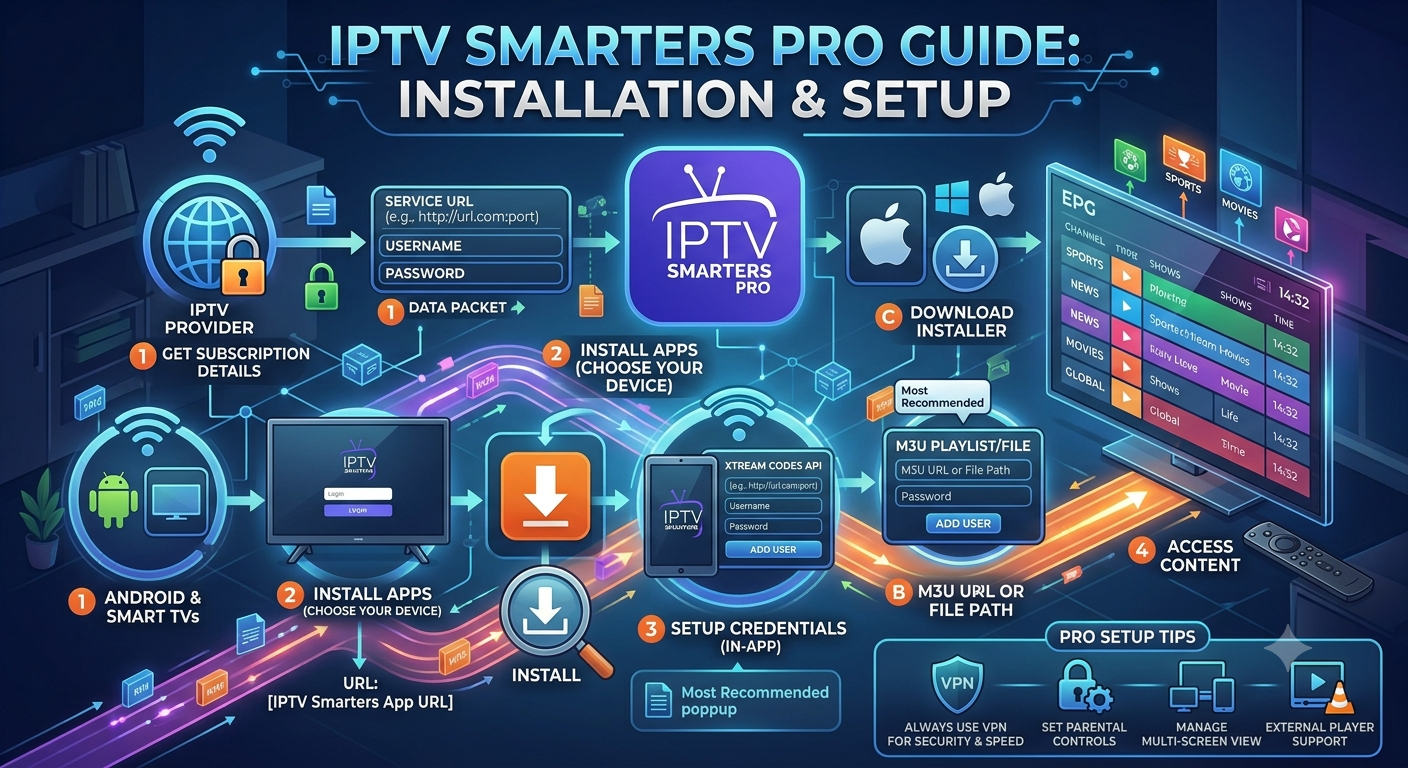
IPTV Smarters Pro is one of the most widely used IPTV player apps, largely because it works across nearly every major device without demanding much technical know-how. This IPTV Smarters Pro guide covers what the app does, how it connects to a content source, and a full installation walkthrough across Android, iOS, Windows, and Firestick, along with the setup errors people run into most often.
Like any IPTV player, IPTV Smarters Pro doesn’t include content on its own. It connects to a playlist or Xtream Codes source supplied by the user and renders that content — live channels, video on demand, and series — inside a single organized interface. That distinction matters throughout setup, since most installation problems trace back to either the app’s configuration or the source credentials, rarely both at once. The app itself is a legitimately published, actively maintained product listed under its developer’s name on the Google Play Store and Apple App Store, which is worth confirming directly if verifying its legitimacy before installing.
Key takeaways:
- IPTV Smarters Pro is a client app, not a content provider — a valid playlist or Xtream Codes login is required before anything will load.
- The app is officially listed on major app stores under its developer name, which is the safest way to confirm you’re installing the legitimate version.
- Setup differs slightly by platform: most devices support a direct app store install, while Firestick typically requires sideloading.
- Most login and playback issues come down to four causes: incorrect credentials, an expired source, an outdated app version, or an unstable connection.
What Is IPTV Smarters Pro?
IPTV Smarters Pro is a third-party IPTV player app that connects to a user-supplied M3U playlist or Xtream Codes source and displays live TV, video on demand, and series content in one interface. The app itself holds no channels or shows; it functions purely as a client that renders whatever a playlist or Xtream Codes login provides.
It’s available across Android, iOS, Windows, Firestick, and Android TV, which is a large part of why it’s become a common starting point for people setting up IPTV for the first time. Installation typically requires Android 6.0 or later, or iOS 13 or later, and the app requests standard permissions for network access and local storage to cache playlist and EPG data. The interface separates content into clearly labeled sections for live TV, movies, and series, with EPG (Electronic Program Guide) data layered on top when the provider supports it.
IPTV Smarters Pro vs. IPTV Smarters (Original): What’s the Difference?
IPTV Smarters Pro is the actively maintained, more feature-complete successor to the original IPTV Smarters app. The original still appears on some app stores but receives far less frequent updates, and several newer features — including expanded EPG support and improved multi-screen handling — exist only in the Pro version. For most new setups, Pro is the more dependable choice simply due to ongoing developer support. For readers weighing IPTV Smarters Pro against apps outside its own family entirely, this broader comparison of IPTV apps offers that broader context early rather than only at the comparison table further down.
How IPTV Smarters Pro Works
Setup starts with entering a playlist URL or Xtream Codes login. Once authenticated, IPTV Smarters Pro pulls in the channel list, EPG data, and any available VOD or series libraries tied to that source, organizing everything inside the app’s built-in interface.
The interface handles the heavy lifting of separating live TV, movies, and series into distinct sections, which is one of the app’s more beginner-friendly qualities compared to players with flatter, less structured layouts, such as VLC or basic M3U readers. Where the source supports it, favorites and viewing history can sync across devices signed into the same account.
Supported Playlist Formats and Login Methods
IPTV Smarters Pro accepts three main authentication methods:
- M3U URL — a direct link to a playlist file containing channel and stream data
- Xtream Codes username and password — an API-based login that pulls channel, EPG, and VOD data directly from a provider’s server
- MAC address authentication — less common, tied to a specific device identifier rather than a username and password
Xtream Codes tends to offer the fuller experience, since it typically includes structured EPG and VOD data alongside the channel list, while a bare M3U link sometimes lacks EPG information entirely.
Benefits of Using IPTV Smarters Pro
IPTV Smarters Pro’s core advantages are broad device compatibility, a beginner-friendly setup process, and built-in EPG and VOD organization within a single interface. Its popularity comes down to a handful of practical strengths:
- Broad device compatibility across Android, iOS, Windows, Firestick, and Android TV
- A setup process that’s noticeably more approachable than apps like Perfect Player or Kodi
- Built-in EPG, VOD, and series organization within a single interface
- Native multi-screen and parental control features without needing extra add-ons
Limitations of IPTV Smarters Pro
IPTV Smarters Pro’s main limitations are its dependence on an external content source and a lower customization ceiling compared to advanced players like TiviMate. A few specifics worth knowing:
- The app has no content of its own — a valid playlist or Xtream Codes login is required for anything to display
- Advanced customization options found in apps like TiviMate or Perfect Player aren’t available here
- Some older device operating systems have compatibility gaps with recent app versions
- App store availability varies by region and platform, occasionally requiring manual installation
Common Problems With IPTV Smarters Pro
Most IPTV Smarters Pro issues trace back to one of five causes: an incorrect playlist URL, missing EPG data from the source, an outdated app version, rejected Xtream Codes credentials, or network instability during live playback. Each is covered individually below.
Playlist Won’t Load or Times Out
This is usually caused by an incorrect URL, a temporary issue on the source server, or a network interruption during the initial sync. Re-entering the playlist URL carefully, checking for extra spaces, and confirming the source is currently active resolves most cases.
EPG Data Missing or Not Syncing
EPG data depends entirely on what the source provides. If a playlist or Xtream Codes login doesn’t include EPG information, the app has nothing to display regardless of its own settings.
App Crashes on Certain Devices
Crashes are often tied to an outdated app version running on an incompatible or older operating system. Updating both the app and, where possible, the device’s OS typically resolves this.
Login Details Rejected (Xtream Codes Error)
A rejected login almost always means the username, password, or server URL was entered incorrectly, or the source subscription has expired. Checking each field against the original credentials is the first troubleshooting step before assuming a deeper issue.
Buffering During Live Playback
Buffering during playback is more often tied to network conditions or source server load than to the app itself. For a full breakdown of causes and fixes, see this IPTV buffering troubleshooting guide.
How to Install and Set Up IPTV Smarters Pro: Step-by-Step Guide
Installing and setting up IPTV Smarters Pro involves five steps: downloading the app for your device, choosing a login method, entering playlist or Xtream Codes credentials, letting the initial data sync complete, and customizing settings like buffer size and parental controls.
Step 1: Download and Install the App for Your Device
IPTV Smarters Pro is available directly through the Google Play Store, Apple App Store, and Microsoft Store on most platforms. Firestick is the exception, since the app usually isn’t listed in the Amazon Appstore and instead requires sideloading through the Downloader app. For the full Firestick-specific process, see this Firestick IPTV setup guide.
Step 2: Choose Your Login Method
Decide between entering an M3U playlist URL or Xtream Codes credentials, depending on the format the source provides. Xtream Codes generally offers a more complete setup, including EPG and VOD data, when available.
Step 3: Enter Playlist or Xtream Codes Credentials
Input the playlist URL, or the username, password, and server address for Xtream Codes, exactly as supplied by the source. Even small formatting errors, such as an extra space, commonly cause login failures at this step.
Step 4: Allow Channel, EPG, and VOD Data to Load
Once credentials are accepted, the app begins pulling in channel lists, EPG schedules, and any available VOD or series libraries. This initial sync can take a few minutes depending on the size of the source’s catalog.
Step 5: Customize Settings
Adjust buffer size, enable parental controls if needed, and organize favorites once the initial content library has loaded. These settings sit within the app’s dedicated settings menu and can be revisited at any time.
Best Practices for Using IPTV Smarters Pro
- Double-check playlist URLs or Xtream Codes details for typos before assuming a deeper technical problem.
- Keep the app updated to its latest available version.
- Use a stable wired connection or the 5GHz Wi-Fi band for smoother EPG syncing and playback.
- Set up parental controls early if the device is shared with children.
Common Mistakes to Avoid With IPTV Smarters Pro
- Entering playlist URLs with extra spaces or incorrect formatting.
- Assuming buffering is app-related without first checking connection speed.
- Skipping app updates and running into avoidable compatibility bugs.
- Not verifying device compatibility before attempting installation on older hardware.
Expert Tips for Getting the Most Out of IPTV Smarters Pro
- Use the multi-screen feature for background viewing while browsing other content.
- Organize channels into custom categories for faster day-to-day navigation.
- Back up playlist settings before switching or resetting a device.
- Test playback stability during peak evening hours, not just off-peak, for a more accurate read on performance.
IPTV Smarters Pro vs. Other IPTV Apps
| App | Platform Support | EPG Support | Setup Difficulty | Best For |
|---|---|---|---|---|
| IPTV Smarters Pro | Android, iOS, Windows, Firestick | Yes | Easy | Beginners |
| TiviMate | Android, Firestick | Yes | Medium | Customization |
| GSE Smart IPTV | Android, iOS | Yes | Medium | Flexible playlist management |
| Perfect Player | Android, Windows | Yes | Medium-High | Advanced users |
| OTT Navigator | Android, Firestick | Yes | Medium | Multi-screen viewing |
For a broader look at how these apps compare beyond setup difficulty, see this comparison of the best IPTV apps available today.
Frequently Asked Questions
Is IPTV Smarters Pro free to use? The app itself is free to download and install. Any cost involved comes from the separate playlist or Xtream Codes subscription supplied by a content source, not from the app.
Does IPTV Smarters Pro work without a subscription? No. The app requires a valid M3U playlist or Xtream Codes login to display any content, since it functions purely as a player rather than a content provider.
Can I use IPTV Smarters Pro on a Smart TV directly? Availability depends on the TV’s operating system. Android TV models can typically install the app directly, while Samsung and LG smart TVs generally require a separate app built for their specific platforms, or a connected streaming device like a Firestick.
Why does my Xtream Codes login keep failing? This is almost always caused by an incorrect username, password, or server address, or an expired source subscription. Re-entering each field carefully, without extra spaces, resolves most login failures.
How do I fix EPG data not showing in IPTV Smarters Pro? EPG data depends on what the source provides — if the playlist or Xtream Codes login doesn’t include EPG information, the app won’t display a program guide regardless of local settings. Confirming EPG availability with the source is the first step.
Can I use IPTV Smarters Pro on multiple devices at once? This depends entirely on the source’s subscription terms, not the app itself. Some sources allow multiple simultaneous connections, while others restrict playback to a single active device at a time.
What’s the difference between M3U and Xtream Codes login in IPTV Smarters Pro? M3U is a playlist file format containing direct stream links, while Xtream Codes is an API-based login using a username, password, and server address. Xtream Codes generally provides more complete EPG and VOD data when supported by the source.
Does IPTV Smarters Pro support 4K streaming? The app itself supports 4K playback, but actual video quality depends on the source stream’s resolution and the viewer’s internet bandwidth, not just the app’s capabilities.
Why does IPTV Smarters Pro crash on my device? Crashes are typically linked to an outdated app version, an older device operating system, or insufficient device memory. Updating the app and checking device compatibility usually resolves this.
Is IPTV Smarters Pro available on the Amazon Appstore for Firestick? It’s inconsistently listed depending on region and store updates, so many Firestick users install it by sideloading the APK through the Downloader app instead of relying on a direct Appstore listing.
How do I back up my IPTV Smarters Pro settings before switching devices? Some versions of the app include an export or backup option within settings that saves playlist and favorites data. Where that option isn’t available, manually noting playlist URLs or Xtream Codes credentials beforehand achieves the same result.
Can I add multiple playlists to IPTV Smarters Pro at once? Yes, the app supports adding more than one playlist or Xtream Codes login, and switching between them from within the app’s user profile menu.
Conclusion
IPTV Smarters Pro remains one of the more accessible entry points into IPTV largely because of its broad device support and straightforward setup process, though the app’s usefulness still depends entirely on having a valid playlist or Xtream Codes source to connect it to. Following the installation steps in order, checking login credentials for formatting errors, and keeping the app updated resolves the majority of setup problems before they become frustrating. This IPTV Smarters Pro guide covers the core installation path across platforms, but pairing it with more focused resources on buffering troubleshooting or platform-specific setup, like Firestick sideloading, rounds out a fuller picture for anyone building a reliable long-term IPTV setup. For more configurations or support guides, visit the IPTV apps and streaming resource hub.